
Browse the knowledge area
The Knowledge area at /knowledge holds every technology Fito knows about and
the components that describe each one. This page is for anyone who wants to read
it: a learner checking what a case will teach, a case creator looking for a
component to pin, or a visitor with no account at all.
Reads under /knowledge are public, so none of the steps below need you to sign
in. For what the things you are browsing are, see
Knowledge components.
Before you begin
Section titled “Before you begin”You need a Fito web app you can reach. On a local install that is
http://localhost:8000, with its server at http://localhost:8000/api.
Find a technology
Section titled “Find a technology”- Open
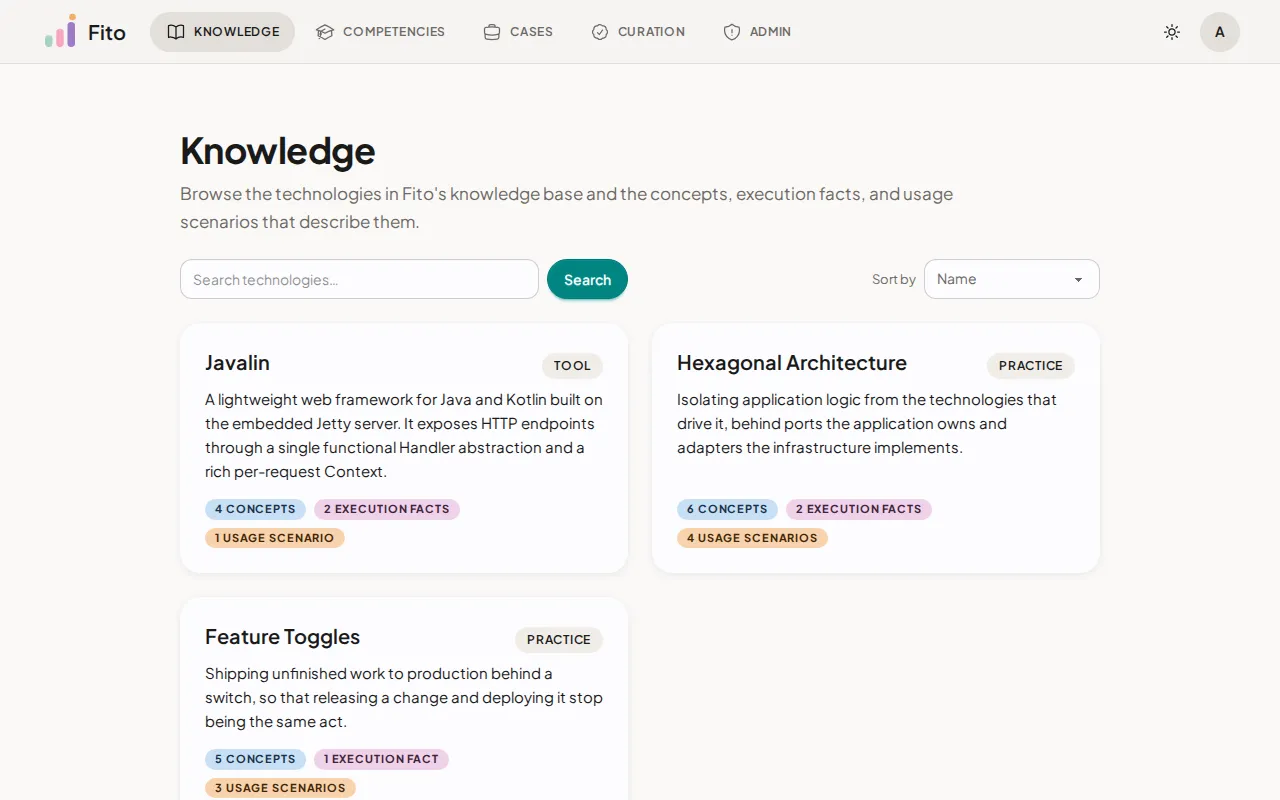
/knowledge. The page lists every technology, 20 to a page. - To narrow the list, type into Search technologies… and click Search.
- To change the order, pick from Sort by. Name is the default. Most components puts the best-covered technologies first.
- To move through the list, click Previous or Next. The page counter
between them reads
Page 1 of 3.
The search text, the sort and the page number all live in the address bar, as
?q=, ?sort= and ?page=. A view you can see is a view you can send to
someone else.
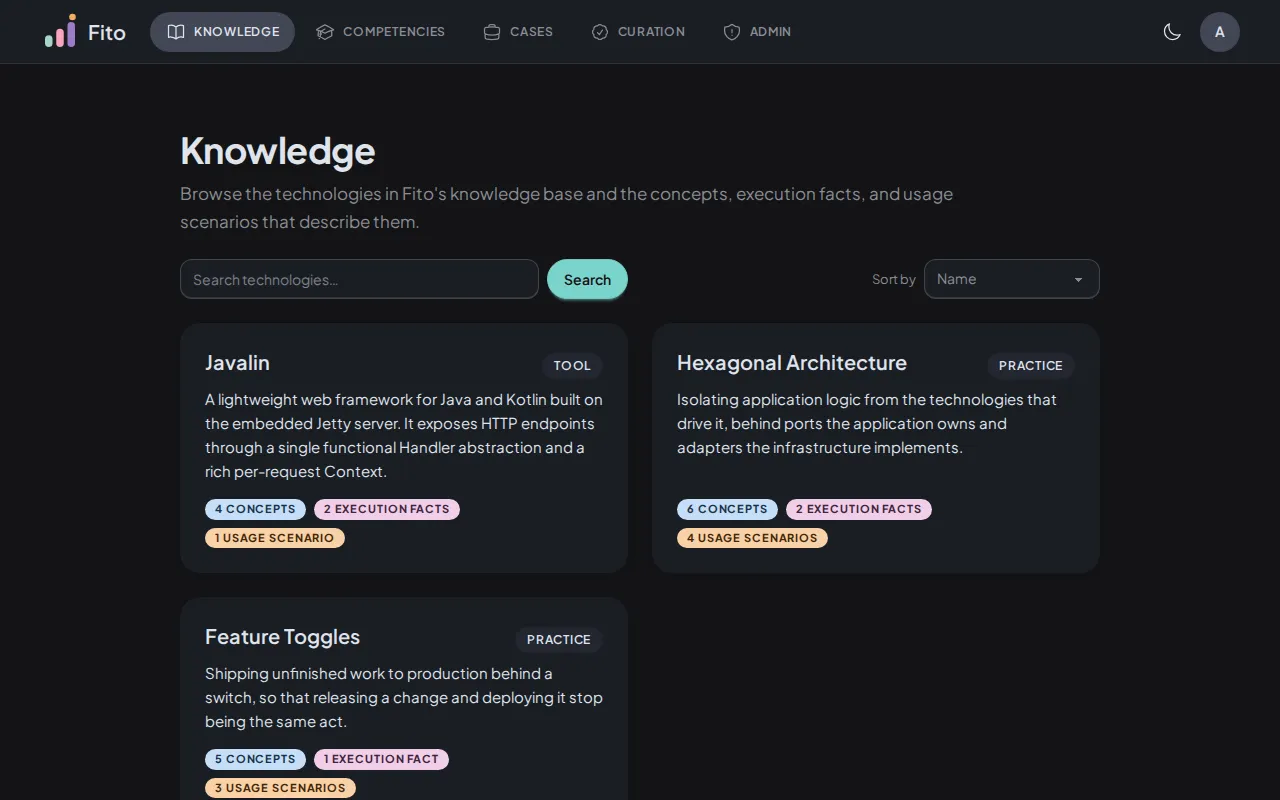
Each card carries the technology’s name, its kind, its description, and one count per component type.
Read a technology’s page
Section titled “Read a technology’s page”- Click a card. The page opens at
/knowledge/<technology-slug>— for the seeded example,/knowledge/javalin. - Read the heading row: the technology’s name, then a pill holding its kind,
toolorpractice. - Below the description sit three count pills, in the order Concepts, Usage Scenarios, Execution Facts. Click one to filter the sidebar to that type.
- To filter from the top instead, use the tabs — All, Concepts, Usage Scenarios, Execution Facts.
The sidebar lists the technology’s components. Filtering by type is instant, because the page already holds the whole set.
Narrow to one major line
Section titled “Narrow to one major line”A component describes one or more of a technology’s major lines, and the Versions section is where you pick one.
- Scroll to Versions. Each card names a major line —
Version 7— and carries that line’s own notes. - Click a card. The page reopens at
/knowledge/<technology-slug>/<version-slug>, and every count and every sidebar entry now covers that line alone.
A card whose line has no notes reads No version-specific notes yet.
A major line is a release line for a tool, and Fito’s own numbering for a practice. Either way it is the label on the card, never a patch number.
Open a component
Section titled “Open a component”- Click a component in the sidebar. Its page opens at
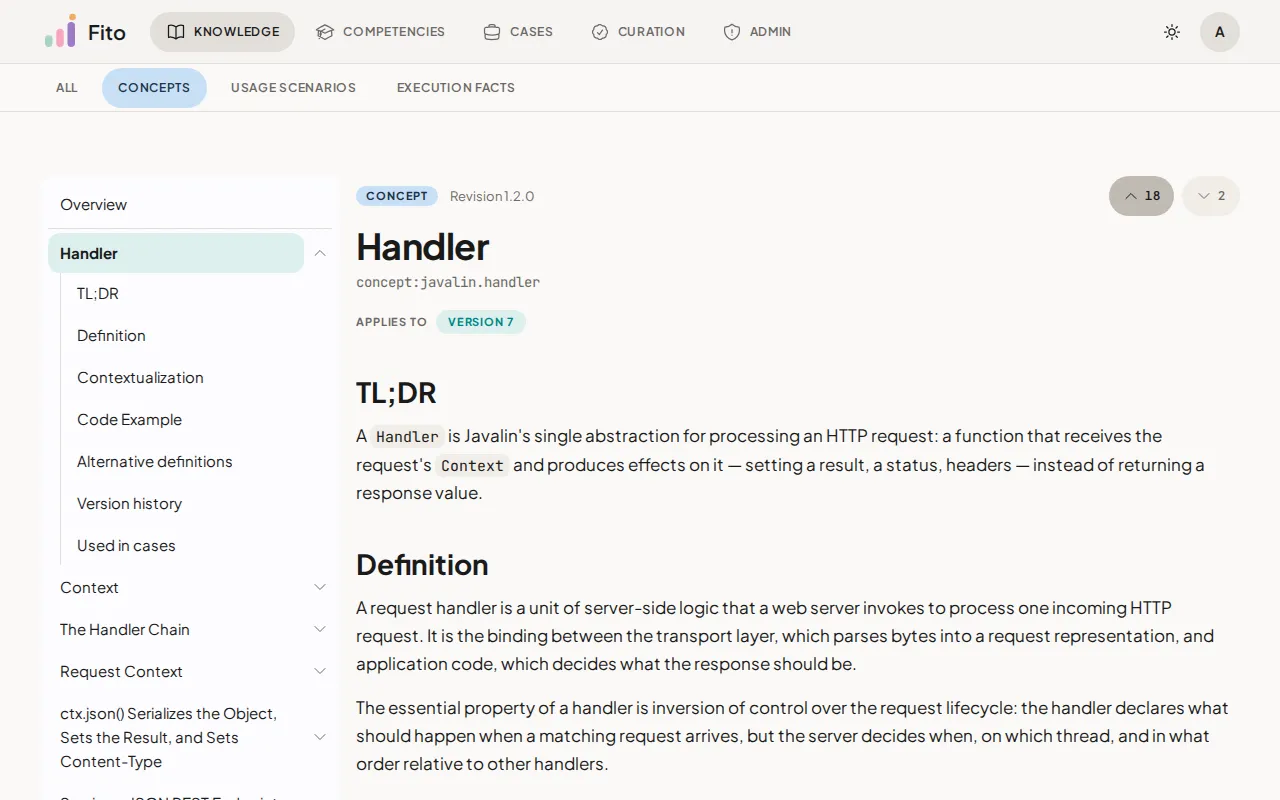
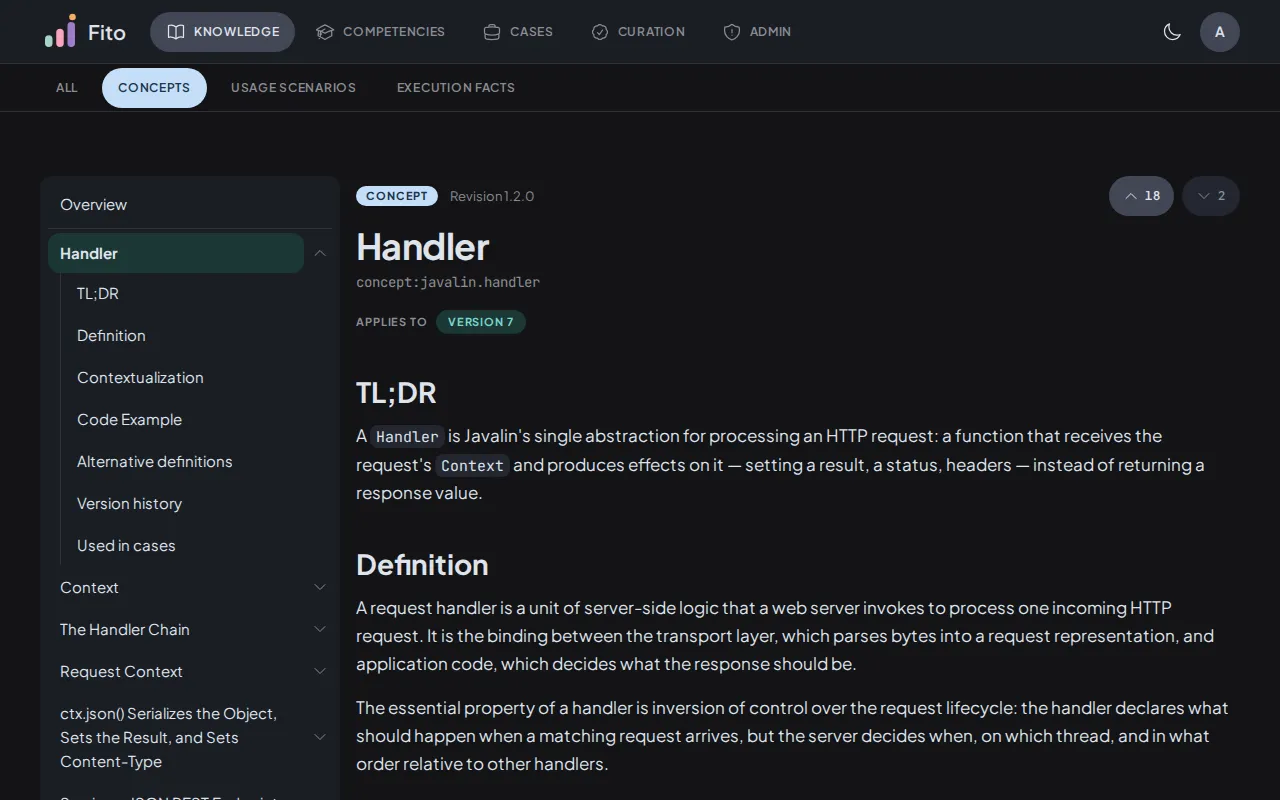
/knowledge/<type>/<technology-slug>.<component-slug>. - Read the header: a type badge, the component’s Revision, the component’s name, and its reference id in code font under the name.
- Under Applies to sit the major lines this component covers. Each one is a link back to that line’s page.
- Below the content sit three panels, closed until you open them: Alternative definitions, Version history, and Used in cases.
See which cases use a component
Section titled “See which cases use a component”- On a component’s page, open Used in cases.
- Read the rows. Each names a published case, its type, and the Bloom level that case targets for this component.
- Click a row to open the case.
An empty panel reads No published case references this component yet. The panel lists a case that names the component as a learning objective or as a prerequisite, so a component can appear under a case that expects it rather than teaches it.
Search for a component by its reference
Section titled “Search for a component by its reference”Two surfaces search components by reference rather than by browsing to them.
On the web, the Curation area’s dispose form has a Resolving component field. Type a fragment of a reference, or words from a component’s name or content, and it offers up to ten matches.
In the terminal, /fito-case-design uses the same search to list a technology’s
components before it probes them.
Read the same list from the API
Section titled “Read the same list from the API”Every browse surface above reads GET /knowledge. So can you:
curl "http://localhost:8000/api/knowledge?technology=javalin&type=concept&excludeSuperseded=true"Narrow the read with type, technology, technologyVersion and q, all
optional.
excludeSuperseded is required, and leaving it out returns 400 rather
than a default. Both answers are legitimate — a detail page must show the
replaced component you are reading, every other caller wants live components
only — so the caller states which one it means.
Confirm it worked
Section titled “Confirm it worked”Open /knowledge/javalin. You should see the kind pill reading tool, three
count pills, and a Versions section holding Version 6 and Version 7.
What’s next
Section titled “What’s next”- Knowledge components — what the three types are, and why a case is scored against them.